Master Data Management
Administrative List
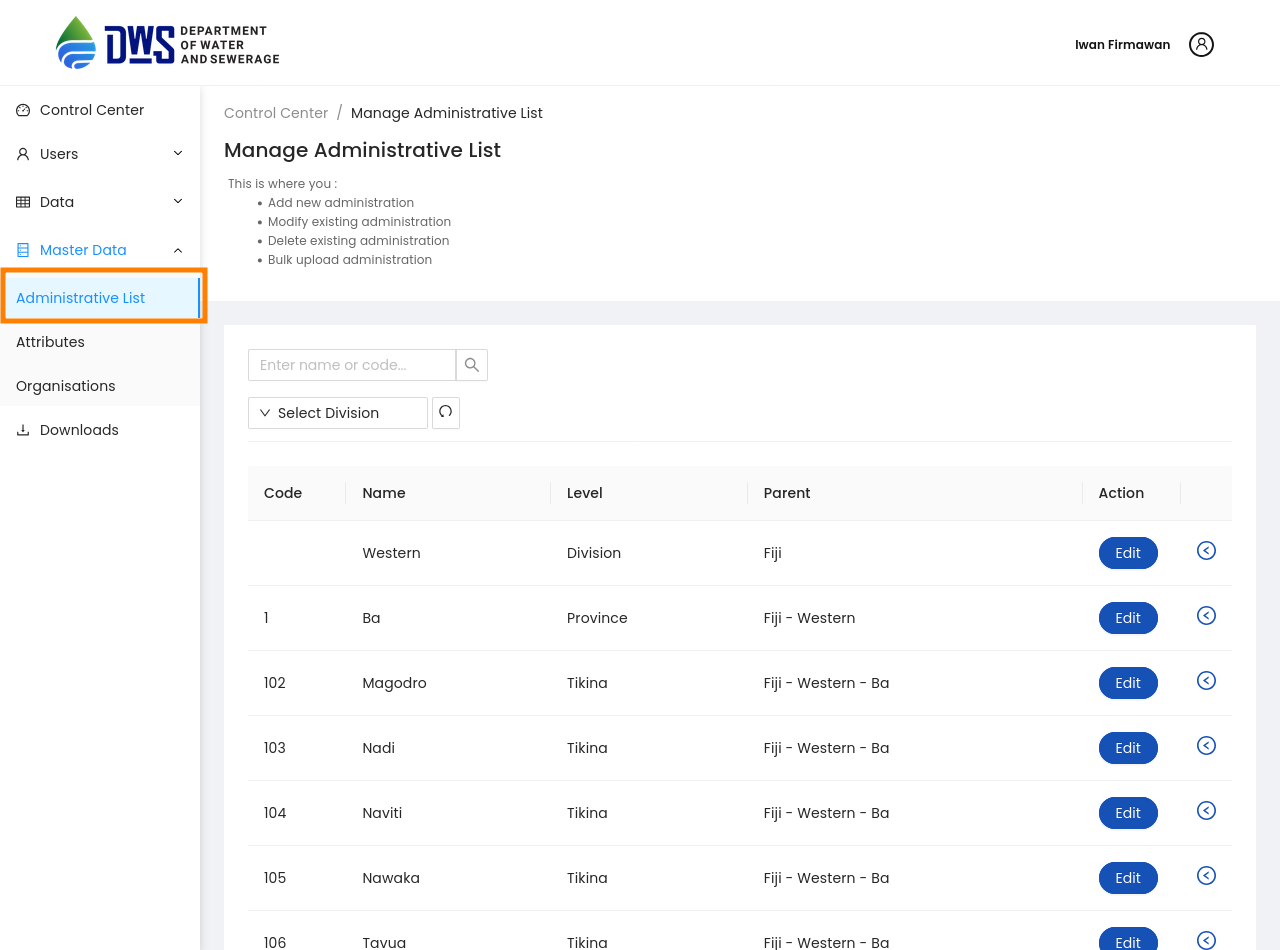
From the Sidebar of the control center, click the administrative list sub menu under the Master Data menu, add or modify an existing administration or delete an existing administration.
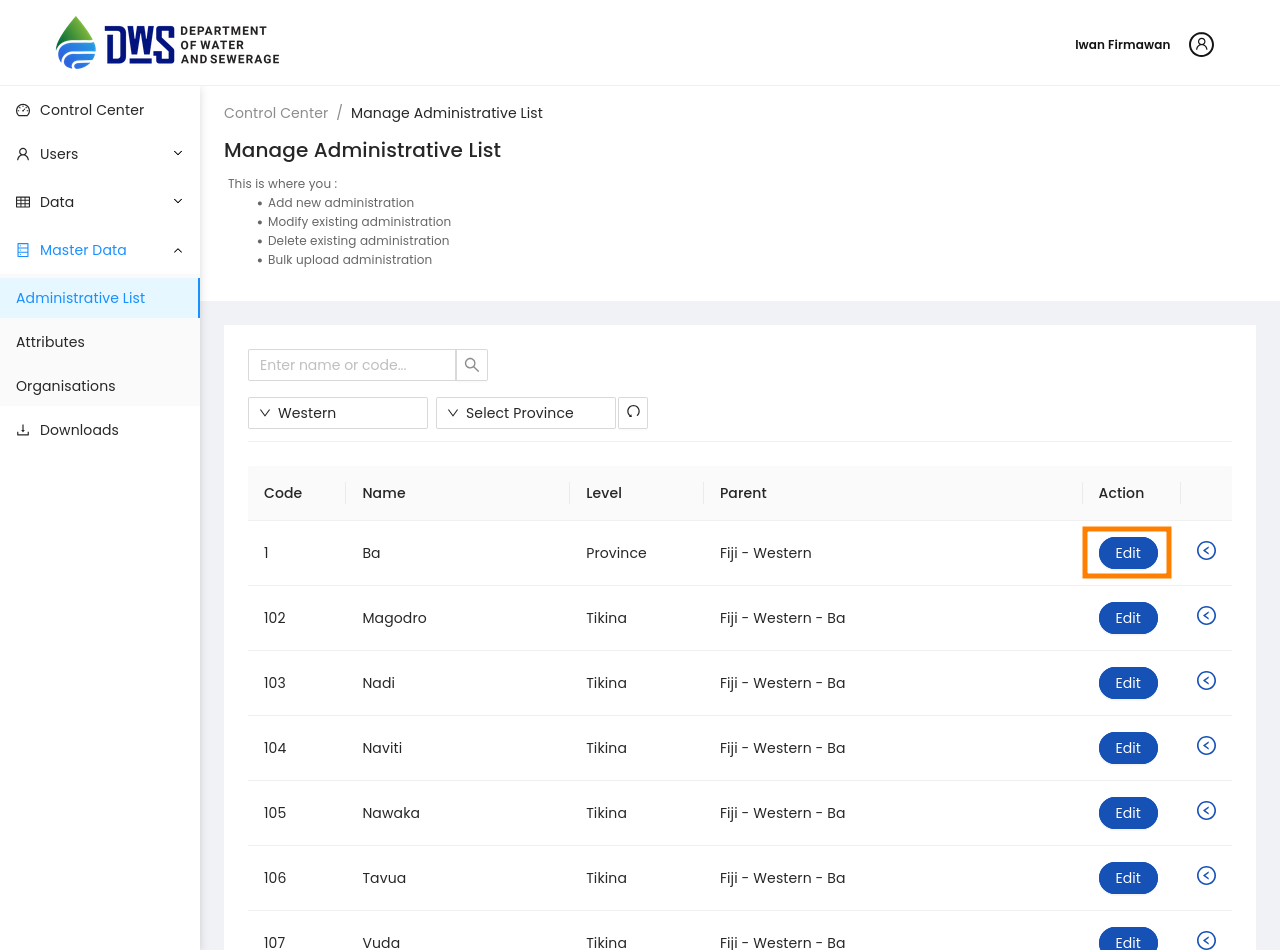
To edit an existing administration, click the Edit button next to the administration, Once data is updated click on the Save Button
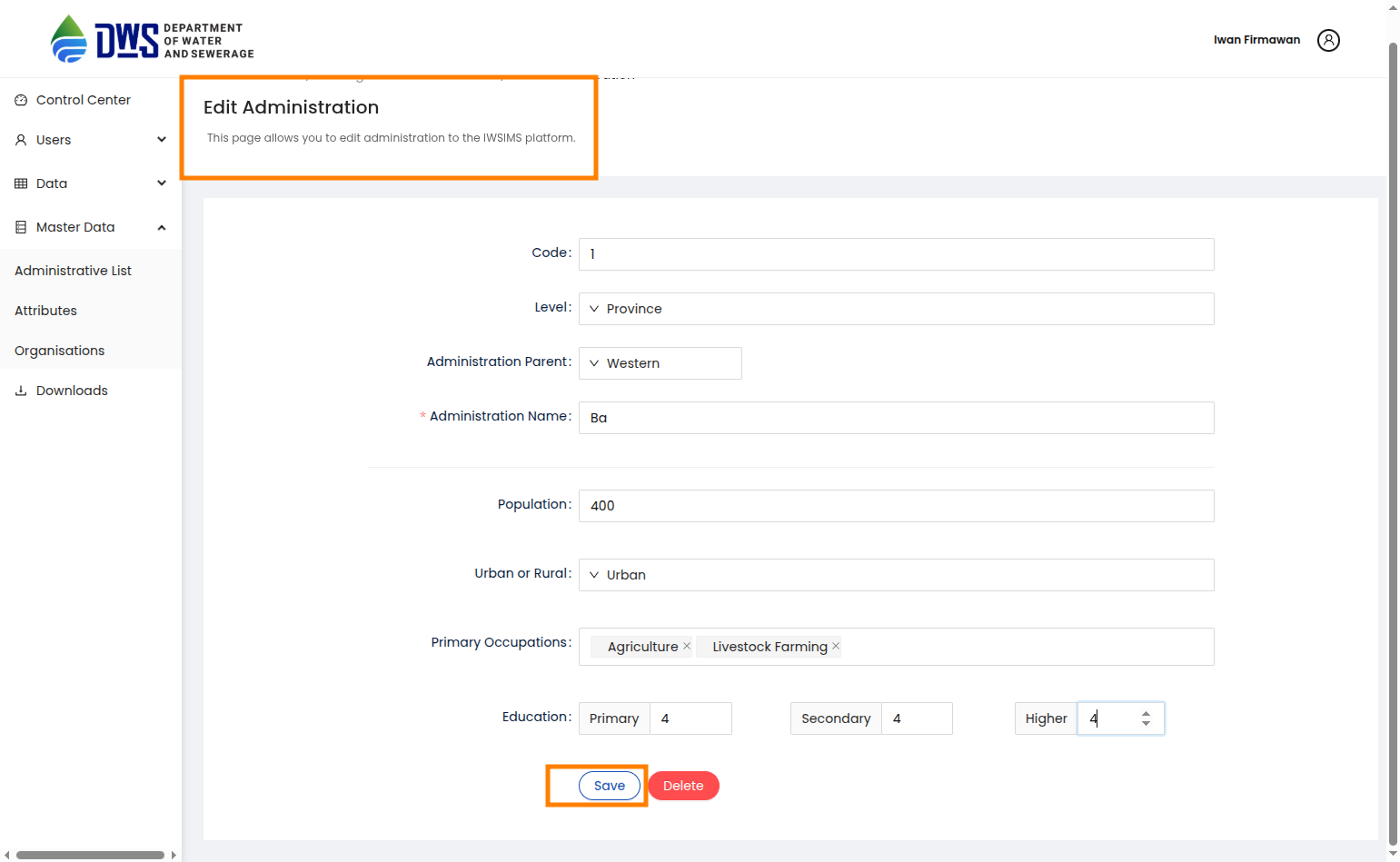
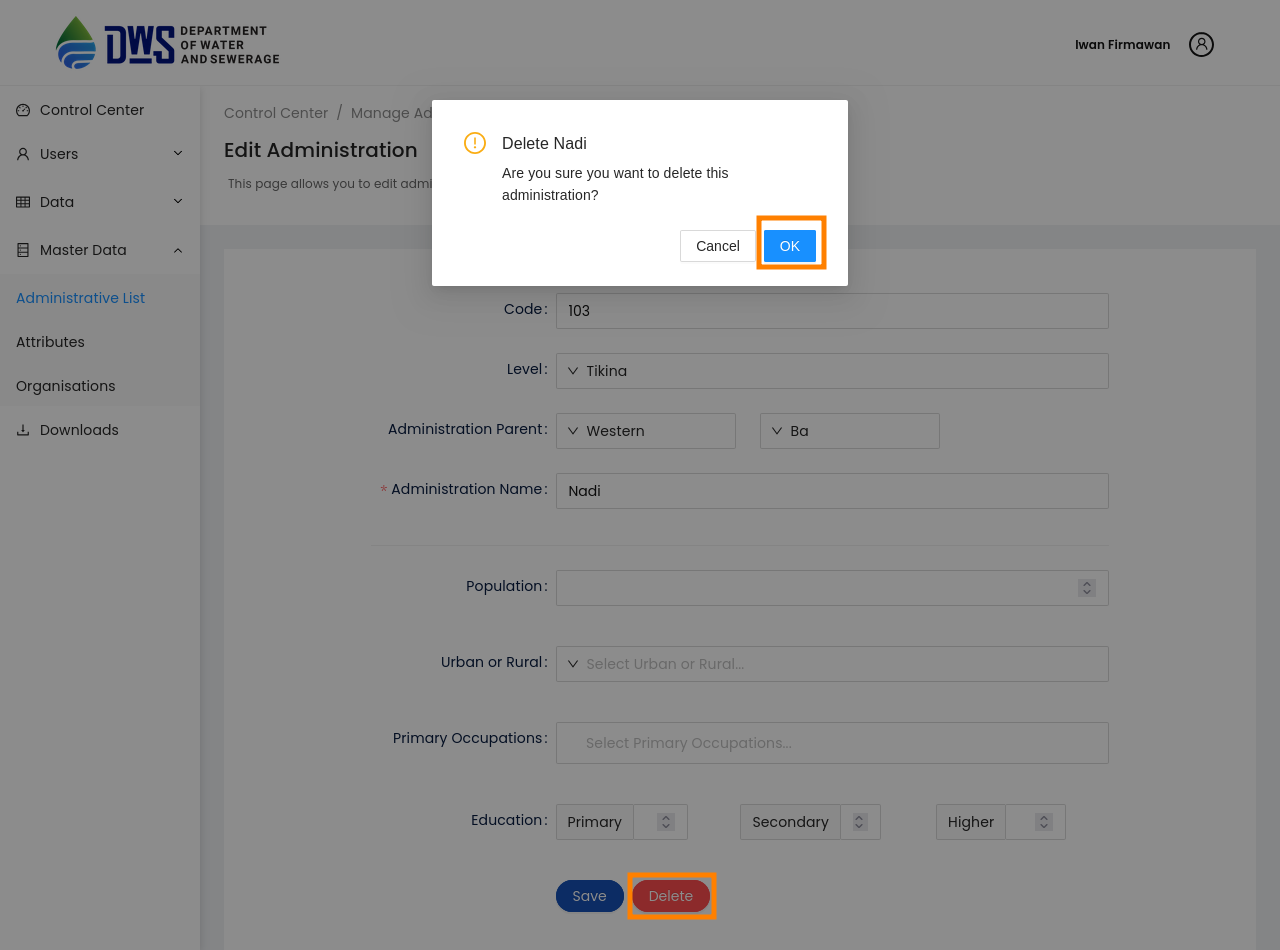
3.To delete click the Delete button. Next, confirm you are deleting the administration by clicking the OK button in the pop-up window.
Manage Attributes
From the Sidebar of the control center, click the attribute sub menu under the Master Data menu, add or modify an existing attribute or delete an existing attribute.
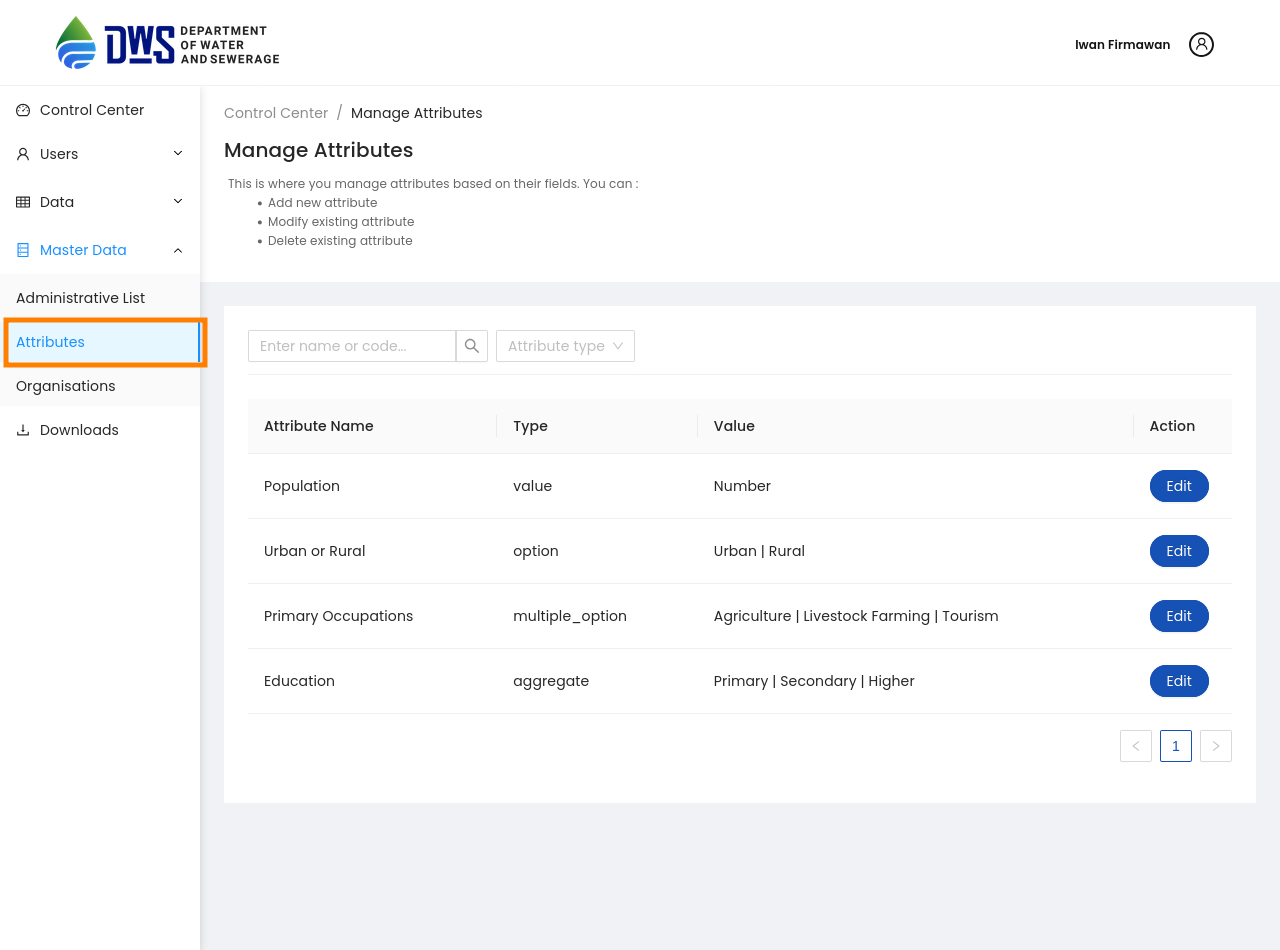
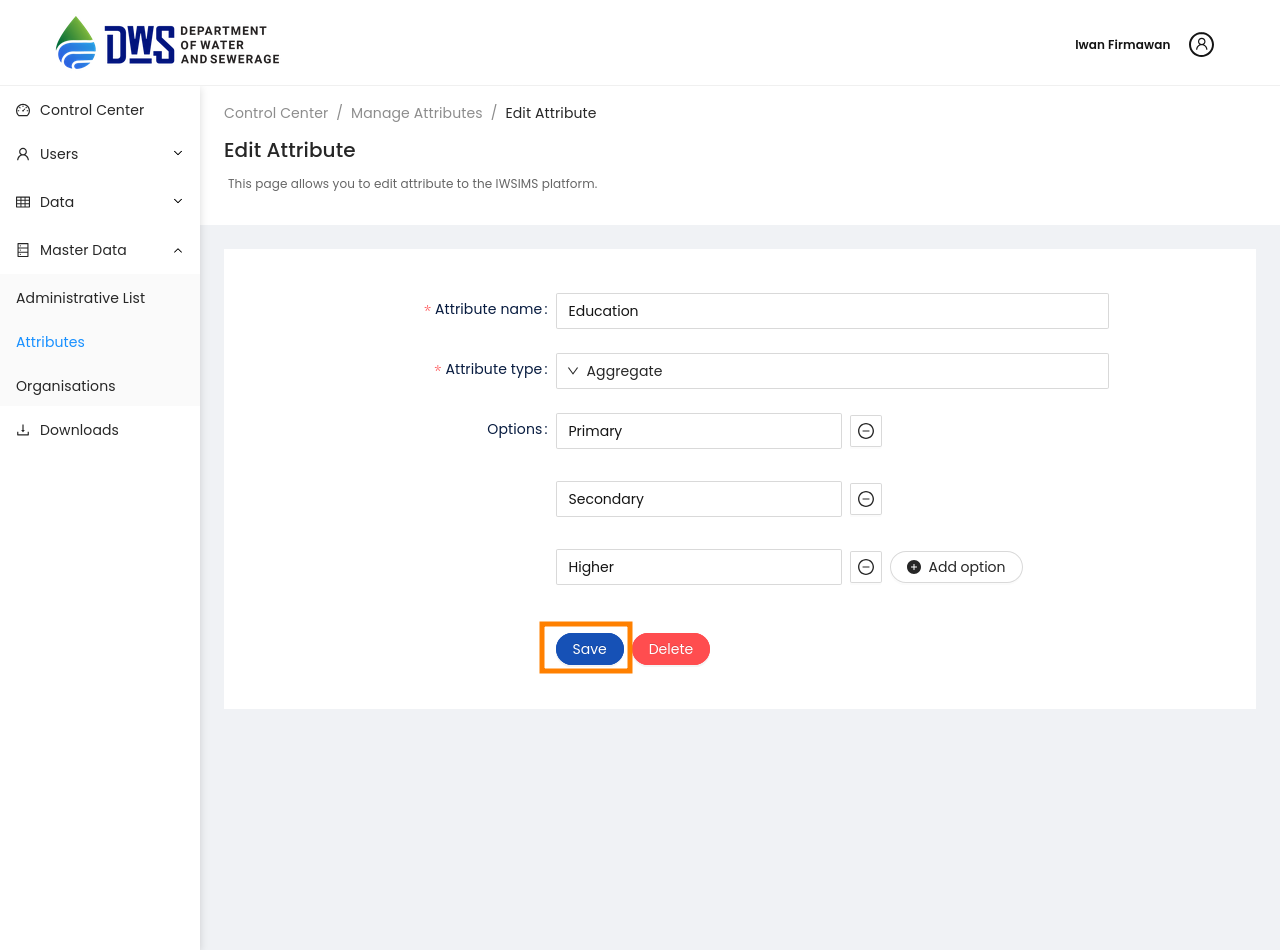
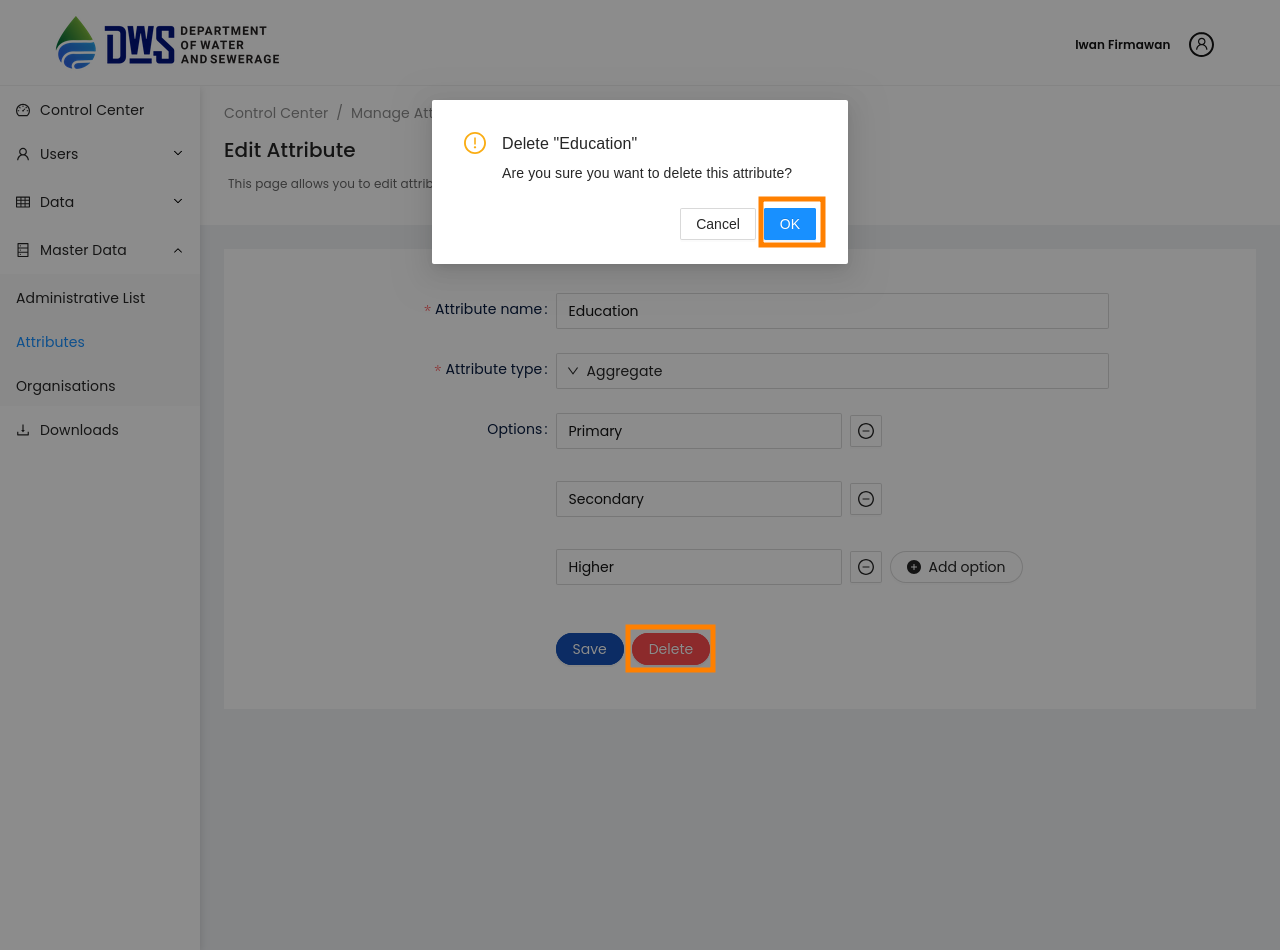
To delete or edit an existing attribute, click the Edit button next to the attribute, Once data is updated click on the Save Button, For deleting the attribute Click Delete Button. Next, click on the confirmation popup window for deleting attribute.
Manage Organizations
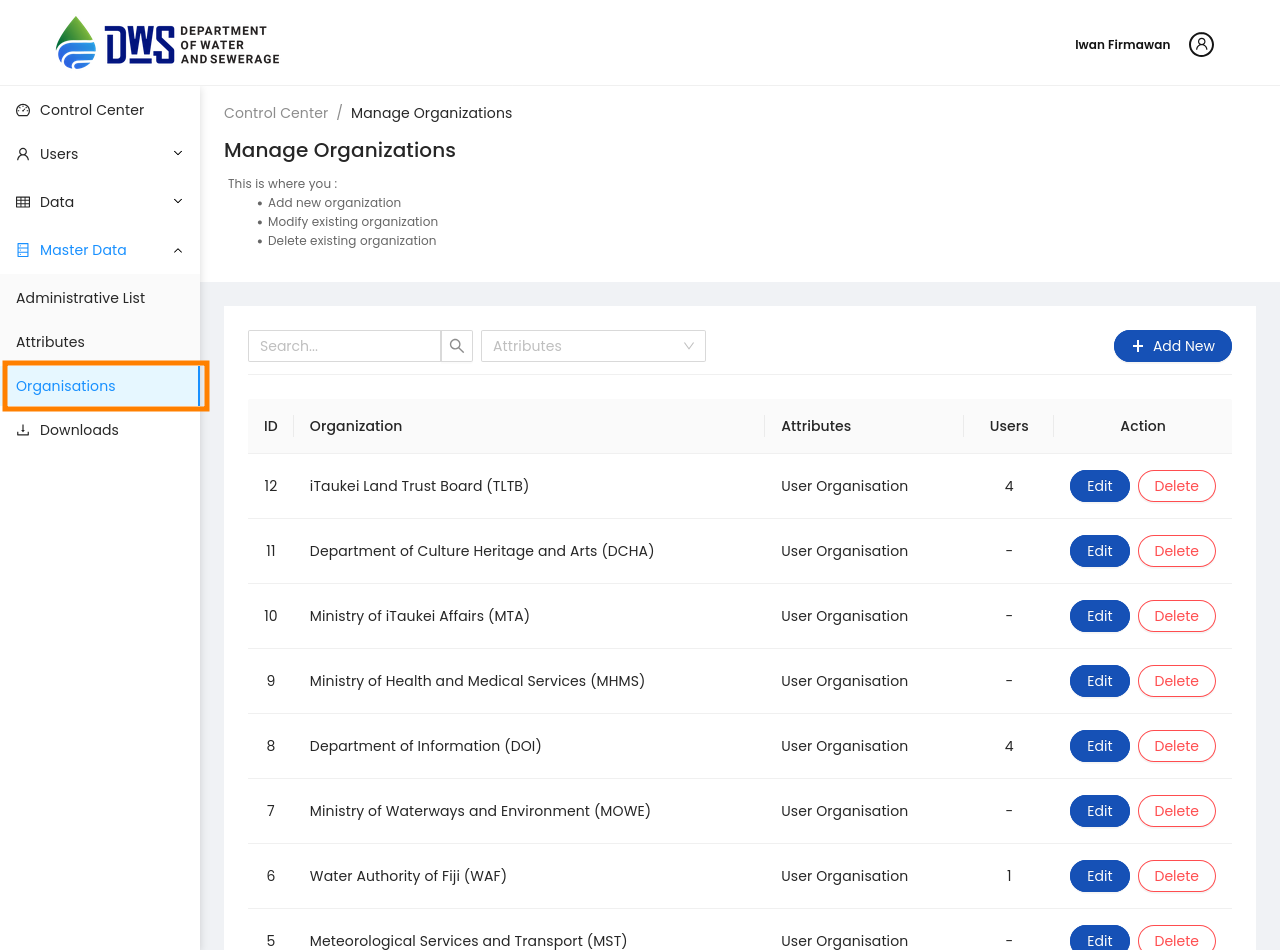
From the Sidebar of the control center, click the Organisations sub menu under the Master Data menu, add or modify an existing Organisation or delete an existing Organisation.
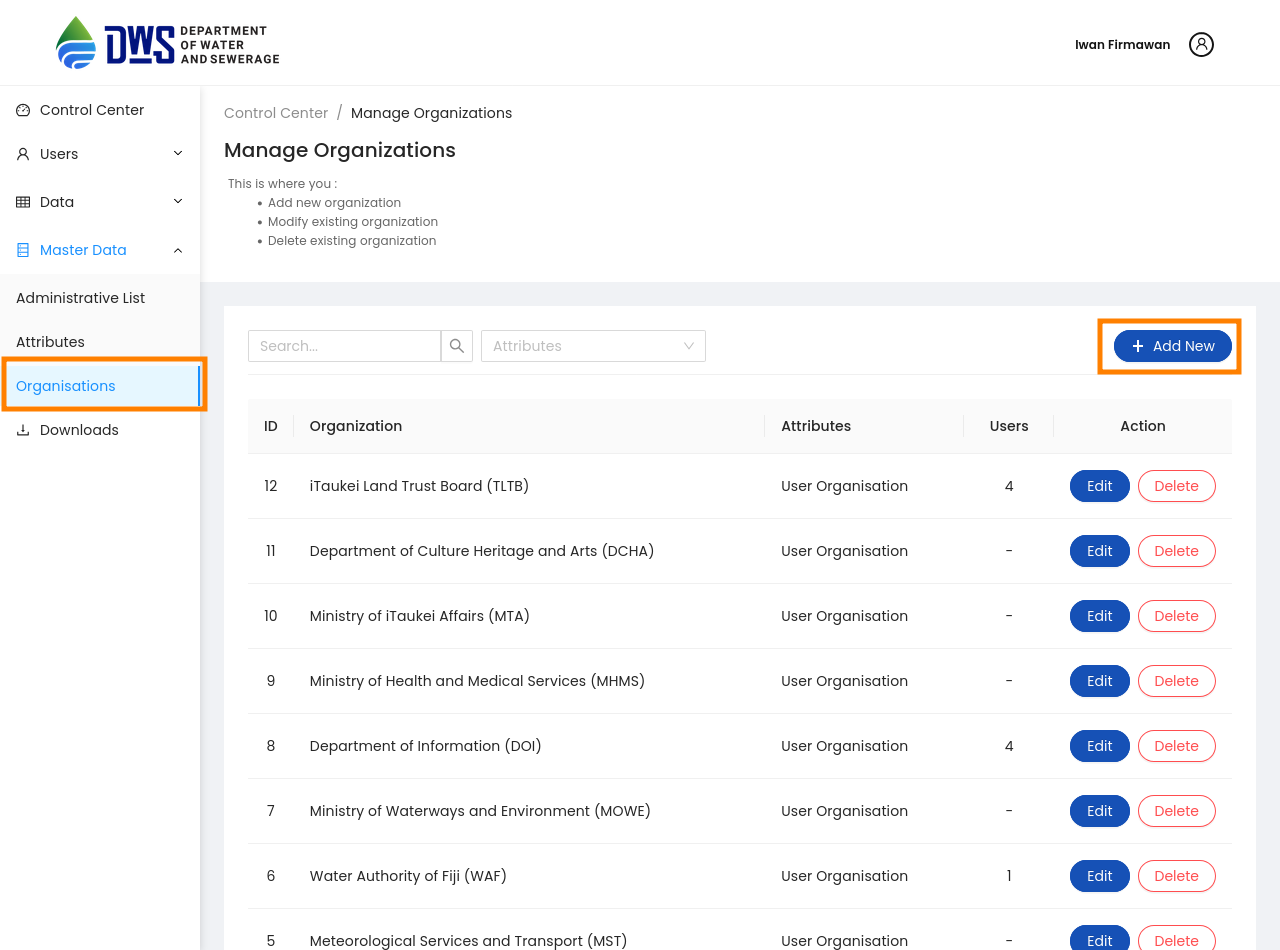
To add a new Organisation, click the ADD NEW ORGANISATION button. Next, fill all mandatory fileds. Finally, click the Save button to add the Organisation.
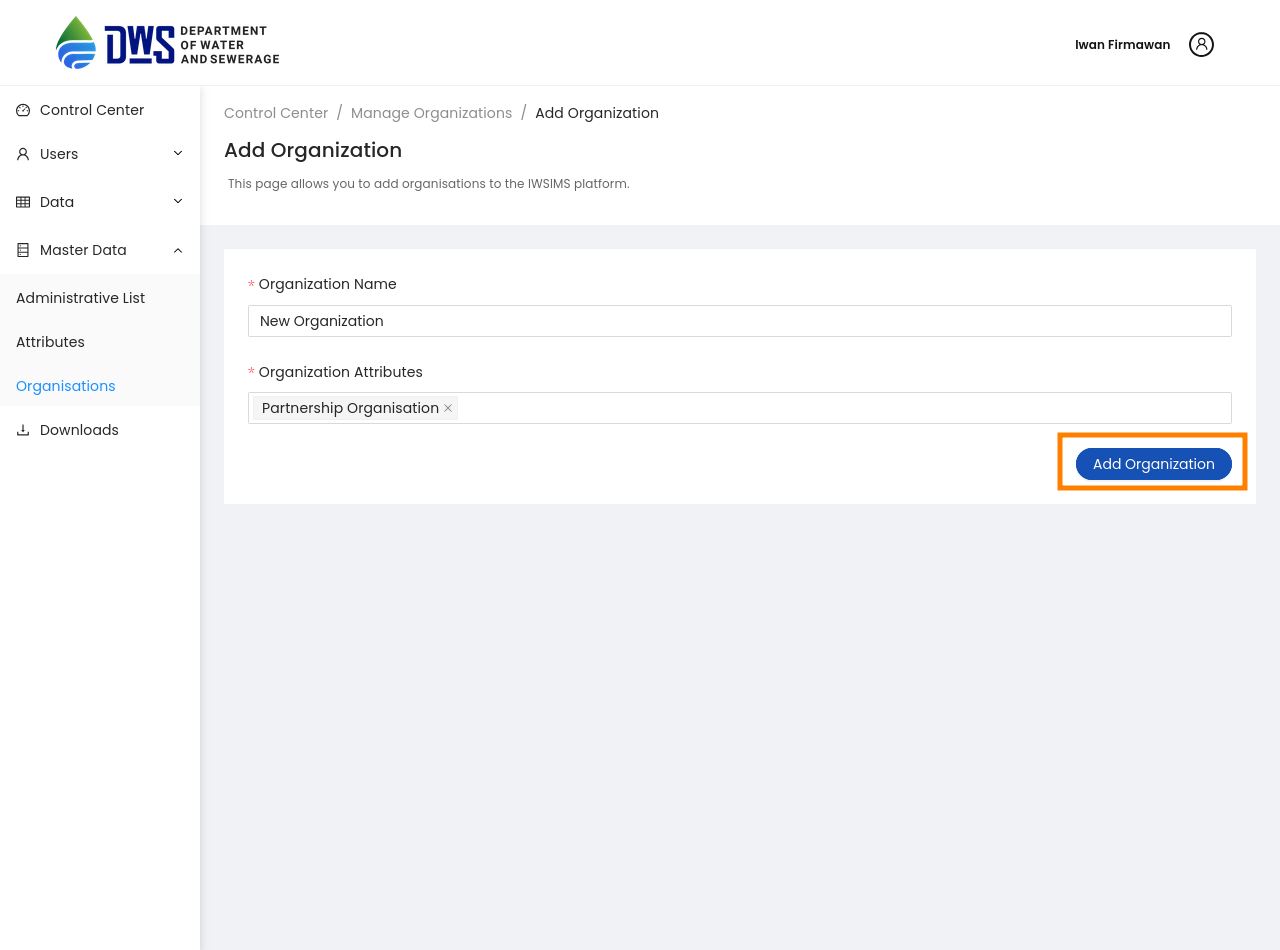
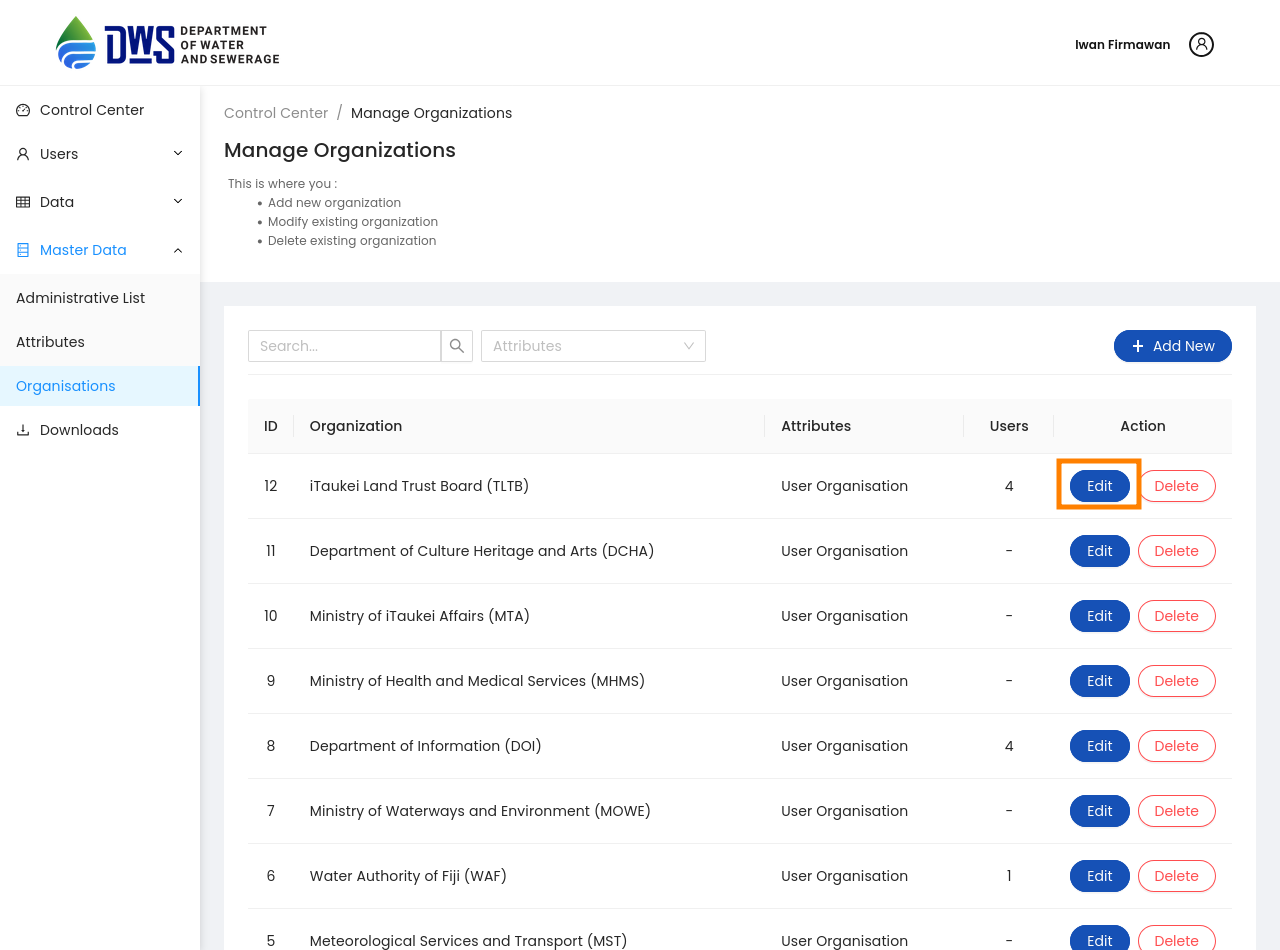
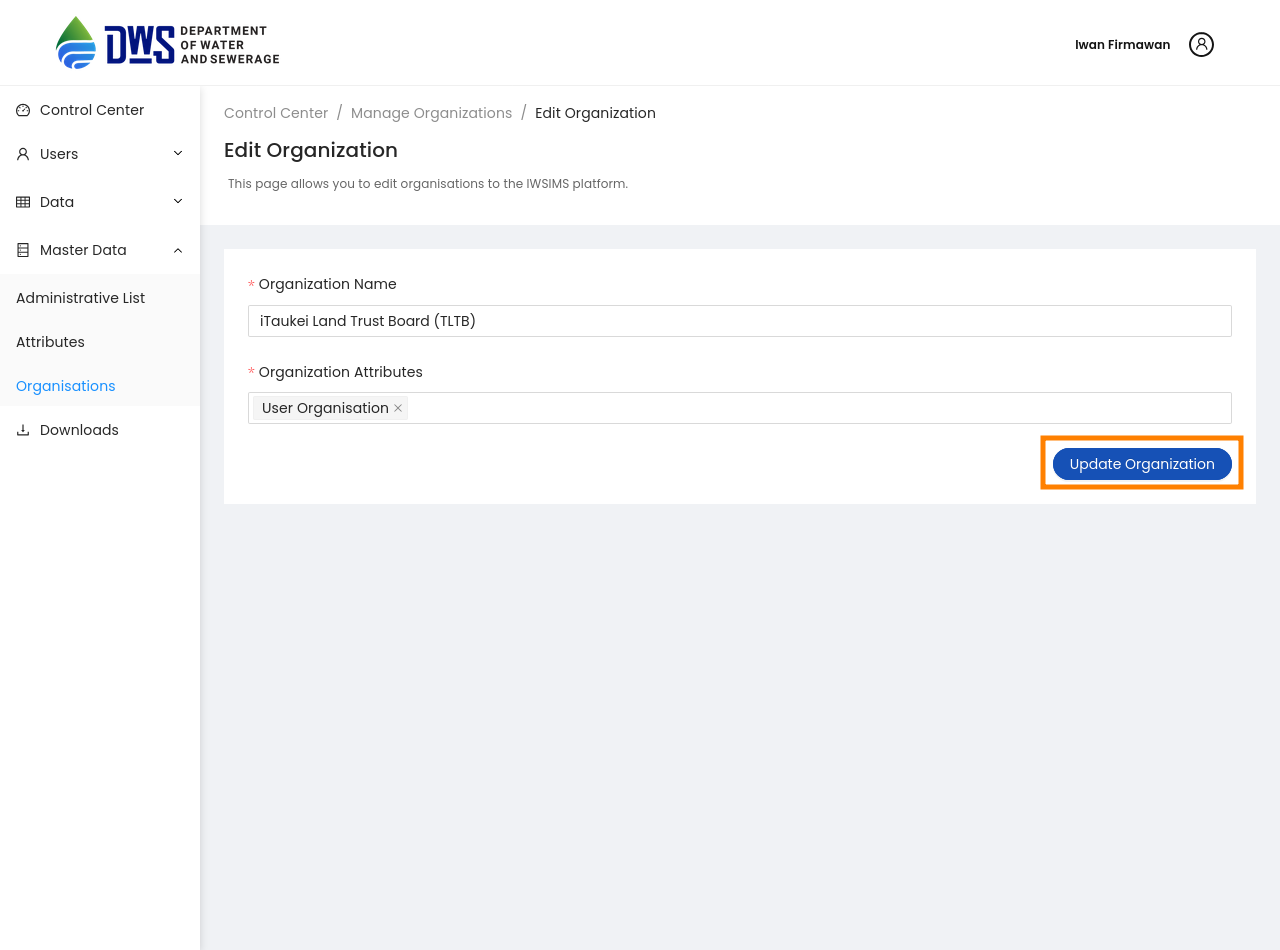
To edit an existing organisation, click the Edit button next to the organisation, Once data is updated click on the Update Organisation Button.
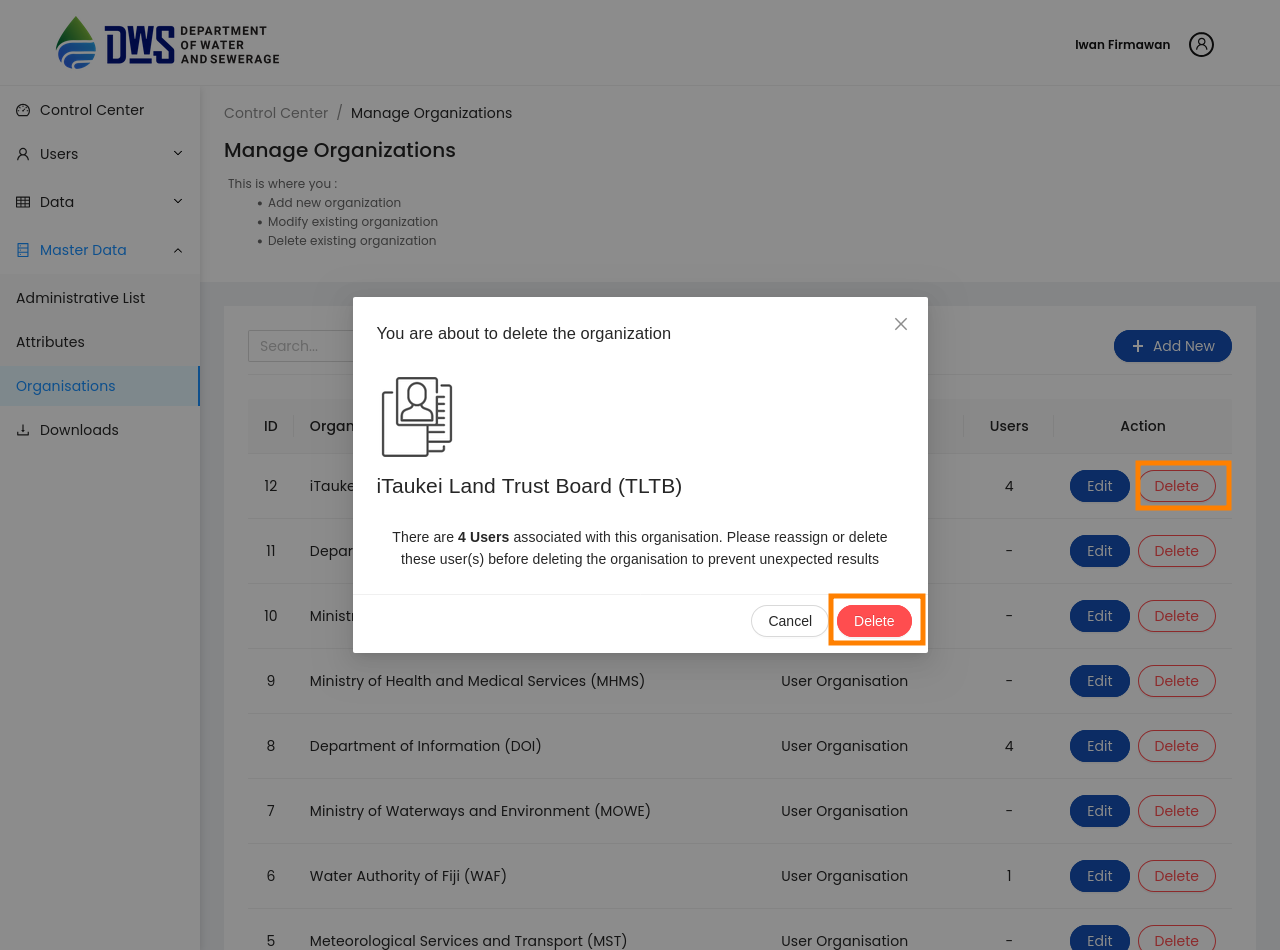
For deleting the organisation Click Delete Button. Also make sure that no user is associated with the deleting organisation. Next, click on the confirmation popup window for deleting organisation.